Beta · Private Access

Look Book Builder

A planning tool for show callers and project managers in live events.

Map screen configurations, layer assignments, AUX outputs, and preset combinations for any live event. Build the run-of-show visually, then export as a spreadsheet for your operators or a look book PDF for the client.

Quick Guide Open the App Take the tour
Core
3-Tool Workspace
3-Tool Workspace
Different planning jobs need different lenses. Mapping signal flow is a different mental model from cueing layers, and cueing layers is different from logging cables.
Presets
Presets
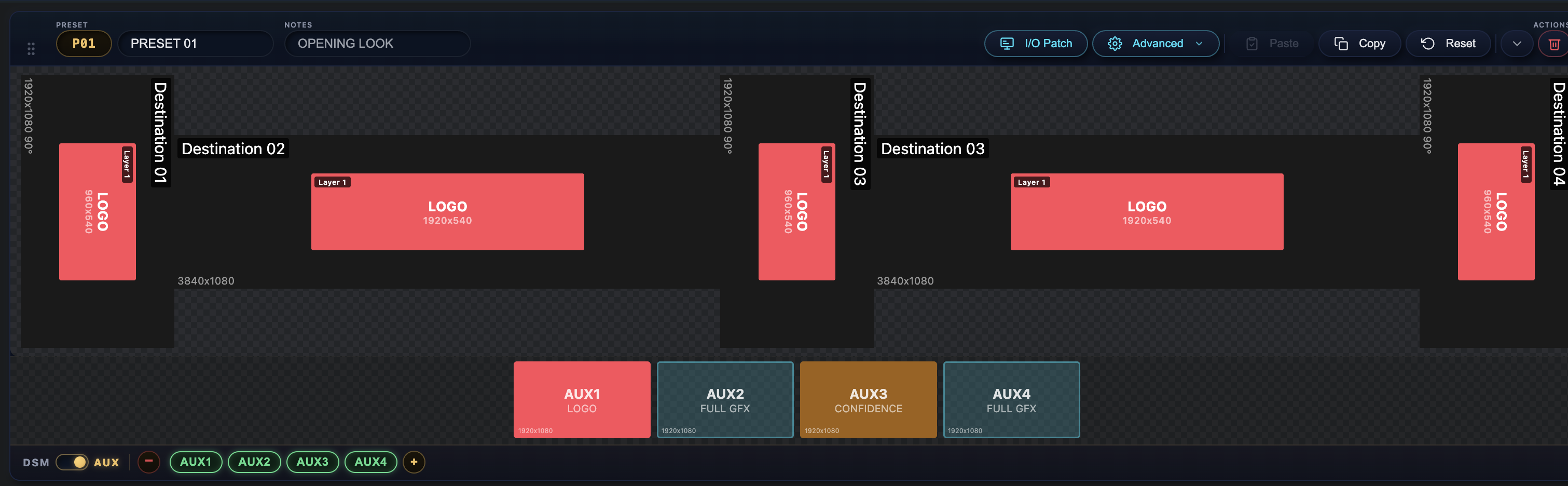
Build unlimited preset combinations with per-preset layer and position overrides.
Destinations
Destinations
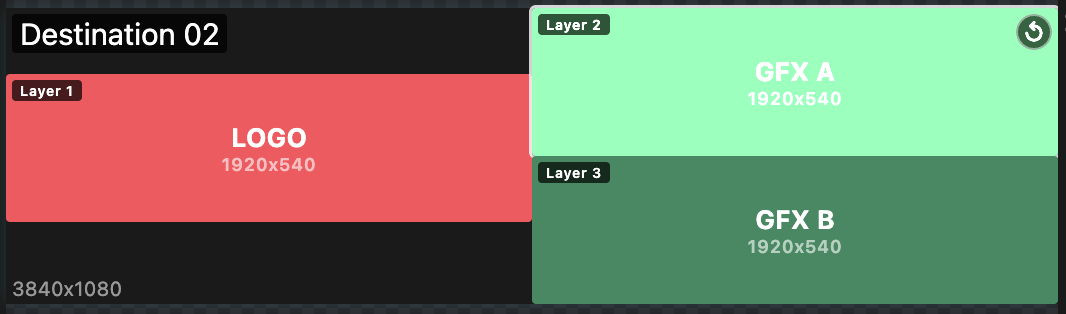
Up to 16 layers per destination — most stay simple, complex shots grow as needed.

AUX / DSM
AUX / DSM
Track auxiliary outputs and downstage monitors with per-preset content.
What's New · Guided Tour

Twelve sections, in build order. Each one walks through a capability shipped since the previous beta — what it is, why it exists, and where to find it. Skim the chips below to jump straight to one, or scroll through end-to-end.

01Multi-Page Wire Diagrams 02Wire Mode 03Advanced Wire Builder 04Persistent Top Toolbar 05Unified Resolution Picker 06Layer Simple ↔ Advanced Toggle 07Quick Setup — Project Metadata 08Wire Mode Export 09Asset Pack — Download All 10Smarter Pre-Export Check 11Upload Indicators on Tiles 12Help & Glossary
Multi-Page Wire Diagrams
01 PAGES

Multi-Page Wire Diagrams

Three independent pages for main, backup, and video-only flows.

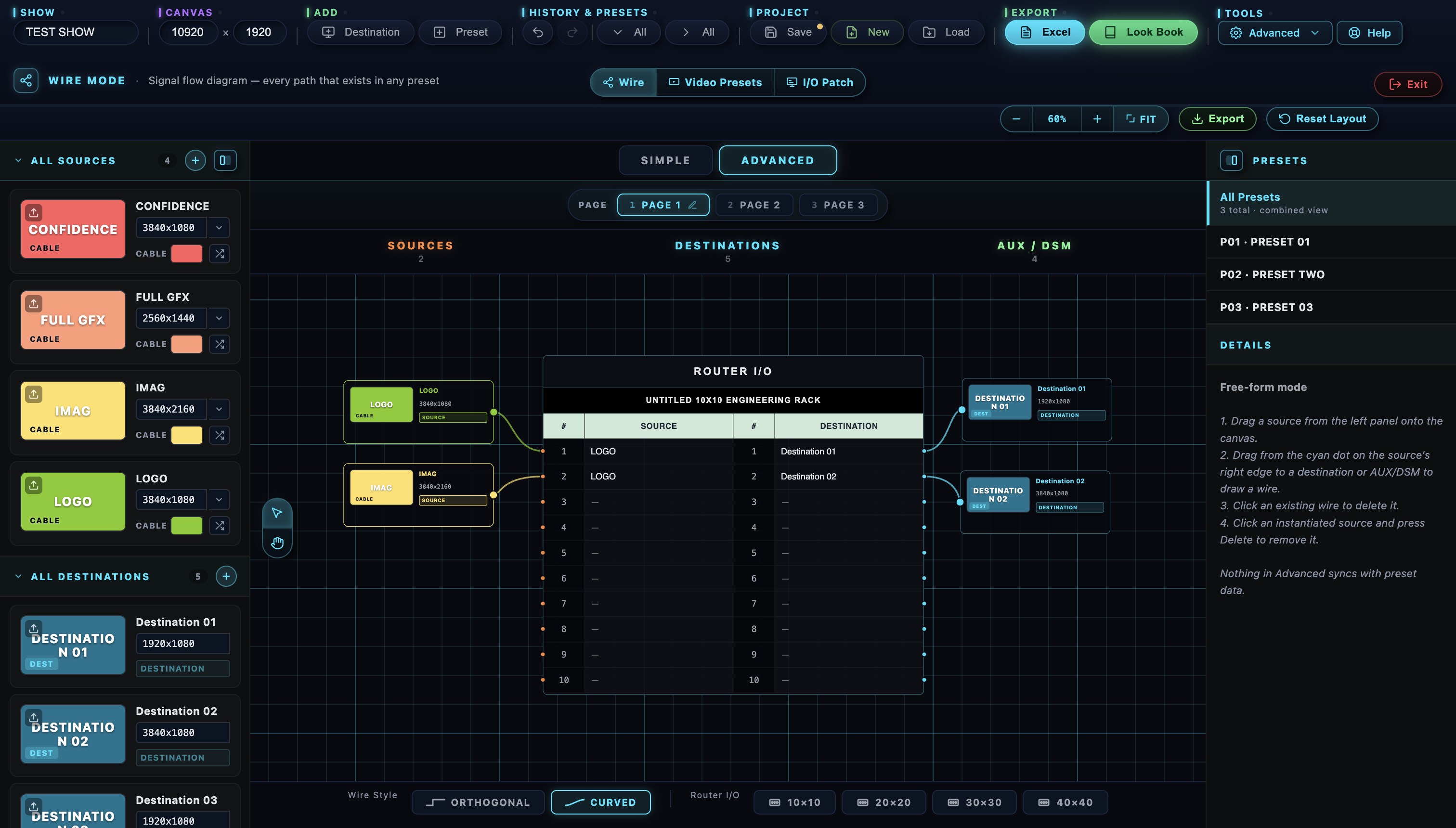
Advanced Wire Mode gives you three independent pages — typically one for the main rig, one for backup, and one for a video-only flow. Each page has its own canvas, its own sources and destinations, and its own router matrix. All three live in the same project file and export together.

Where Wire Mode → Advanced. PAGE 1 / 2 / 3 tabs along the top to switch.
Wire Mode
02 SIGNAL FLOW

Wire Mode

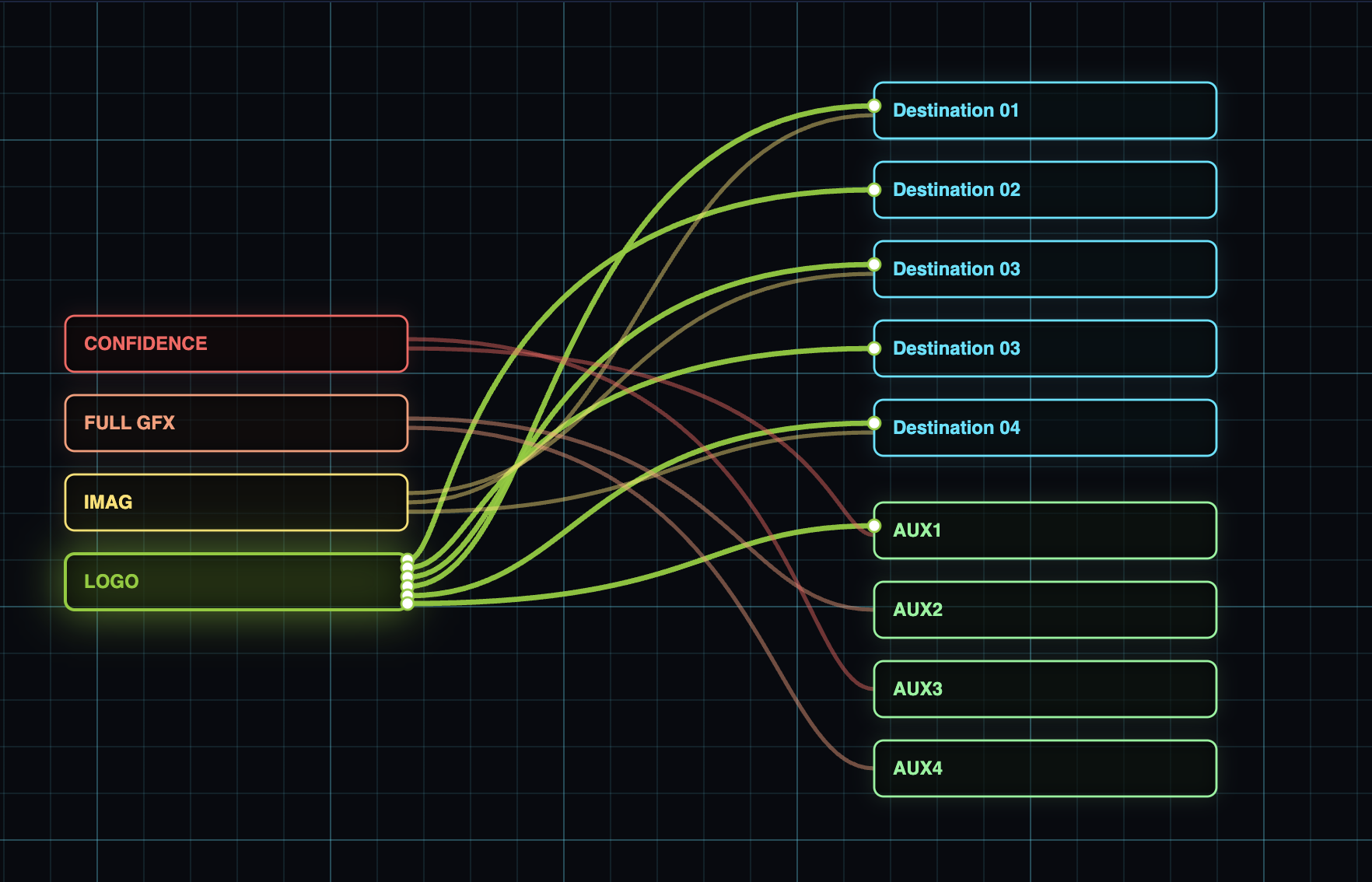
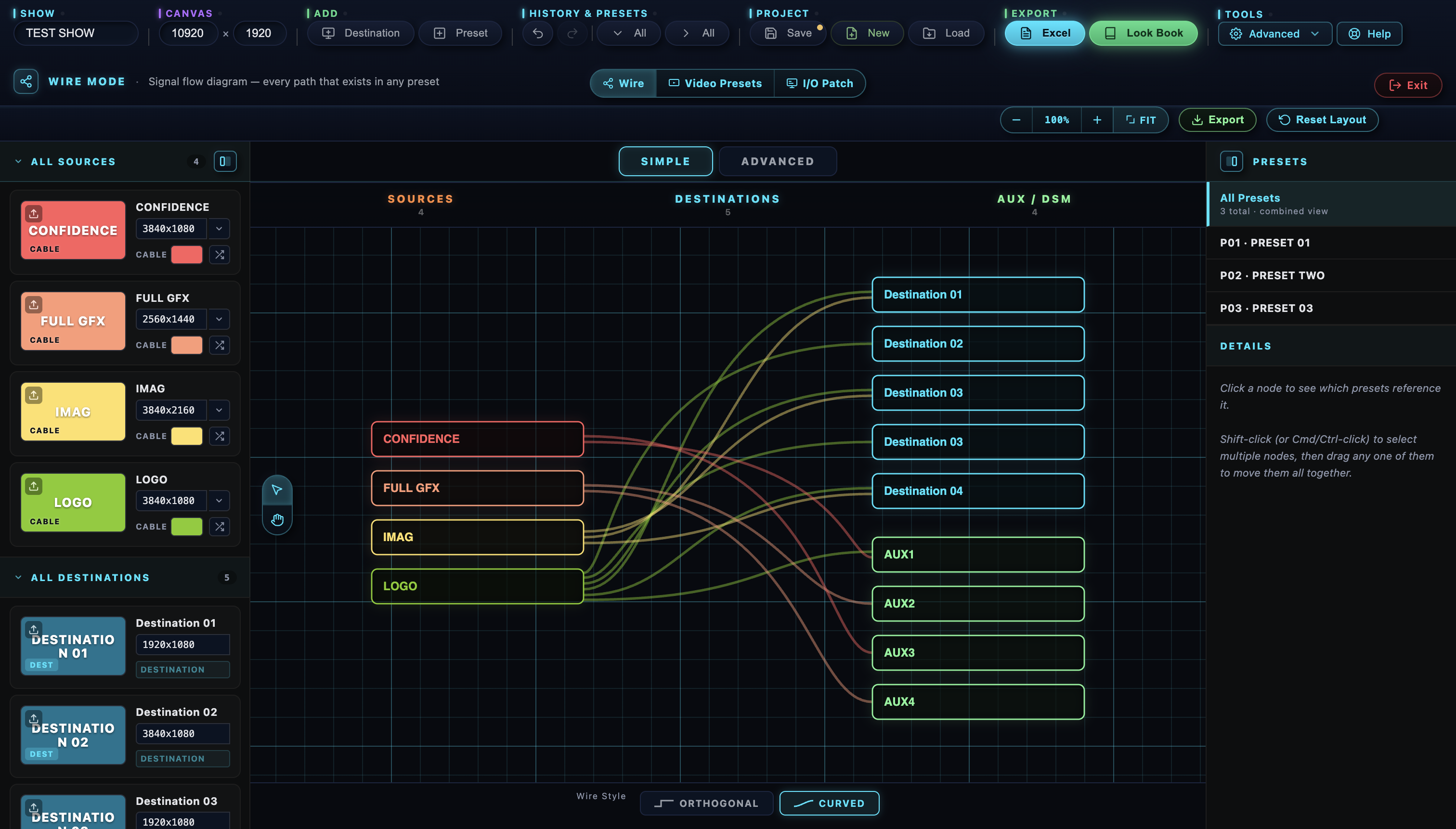
A fullscreen view that maps every source-to-destination path in your show.

Simple mode auto-generates the diagram from your existing show data — sources on the left, destinations on the right, color-coded cables in between. Mid-point handles on each wire let you route around crossings so the picture matches how the rack is actually built.

Where Top toolbar → WIRE. Drag to pan with the hand tool, scroll to zoom.
Advanced Wire Builder
03 FREE-FORM CANVAS

Advanced Wire Builder

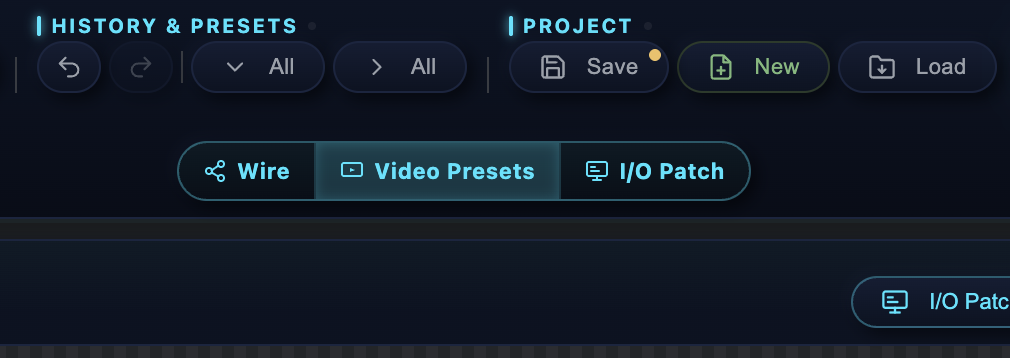
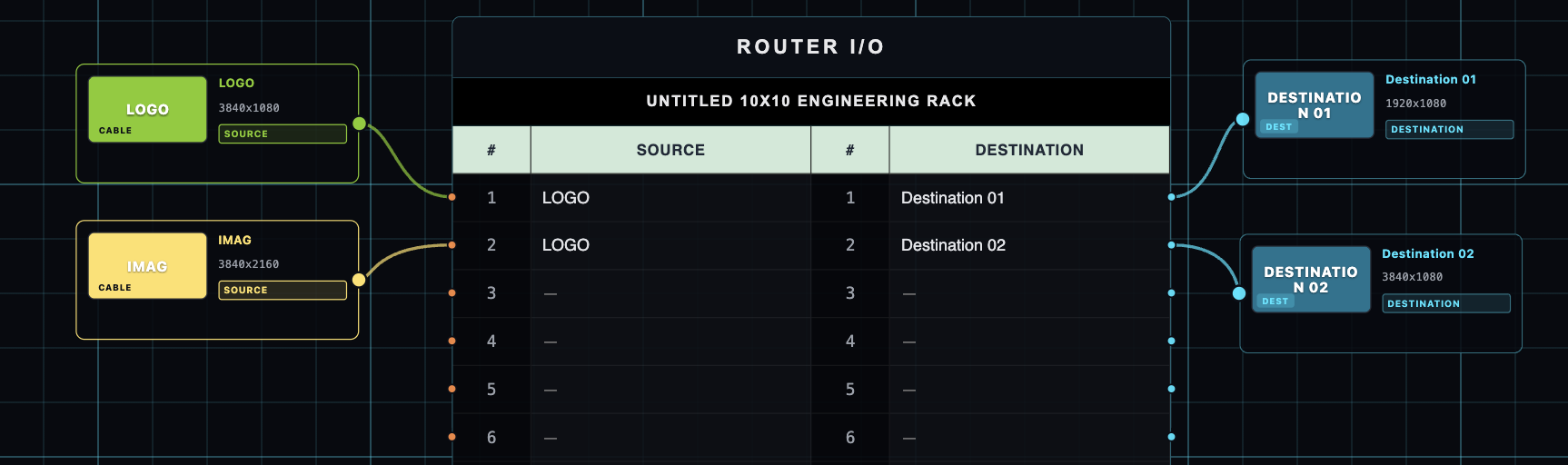
Wire · Video Presets · I/O Patch sit as peer tabs in the top toolbar.

When one diagram isn't enough, switch Wire Mode into Advanced. Drag sources, destinations, and AUX/DSM tiles anywhere on the canvas. Drop a 10×10, 20×20, 30×30, or 40×40 router I/O matrix into the middle to model the actual processor between your inputs and outputs.

Where In Wire Mode, toggle Simple → Advanced. PAGE 1 / 2 / 3 tabs along the top.
Persistent Top Toolbar
04 NAVIGATION

Persistent Top Toolbar

SHOW · CANVAS · ADD · HISTORY · PROJECT · EXPORT — at the top of every view.

Before, each tool had its own toolbar in a slightly different place. Now the same toolbar follows you from Wire to Video Presets to I/O Patch. The 3-tool nav pill and Exit live on a second row, always in the same spot, so muscle memory carries across the whole app.

Where Always visible at the top, every tool. Hides only during fullscreen presentation.
Unified Resolution Picker
05 RESOLUTIONS

Unified Resolution Picker

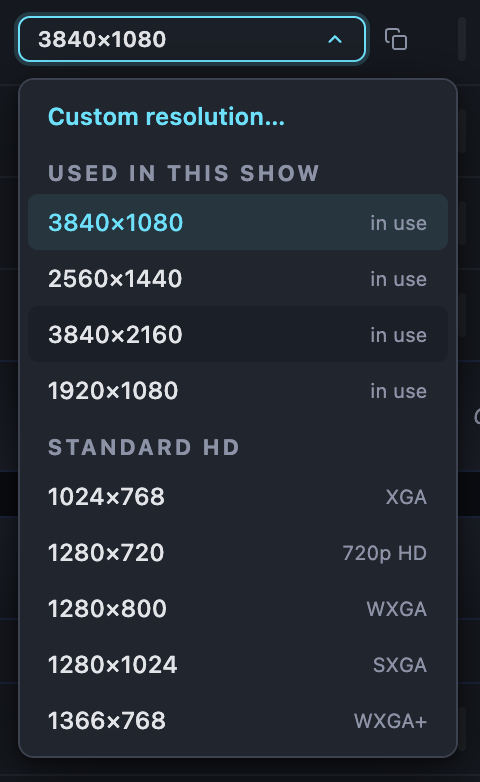
One categorized library, used everywhere a resolution is set.

The picker is identical in Quick Setup, Destination Combinations, Wire Mode, and I/O Patch. Custom Resolution sits at the top and opens the EDID / bandwidth calculator. "USED IN THIS SHOW" auto-detects what your project already references; below that, standard groups (SD · HD · DCI · QHD · UHD · 5K+ · LED) make picking the right one fast.

Where Click any resolution chip or field — same picker opens everywhere.
Layer Simple ↔ Advanced Toggle
06 TOUCH-FRIENDLY

Layer Simple ↔ Advanced Toggle

A pill toggle inside the layer panel header.

The old simple-versus-advanced switch needed a double-click pattern — fine with a mouse, awkward on a touchscreen at front-of-house. The new pill is one tap and the panel rebuilds in place. Designed for the rack-side touch displays we know you actually plan on.

Where Open any layer panel (D1, AUX, DSM). Pill sits in the top-right of the header.
Quick Setup — Project Metadata
07 PROJECT INFO

Quick Setup — Project Metadata

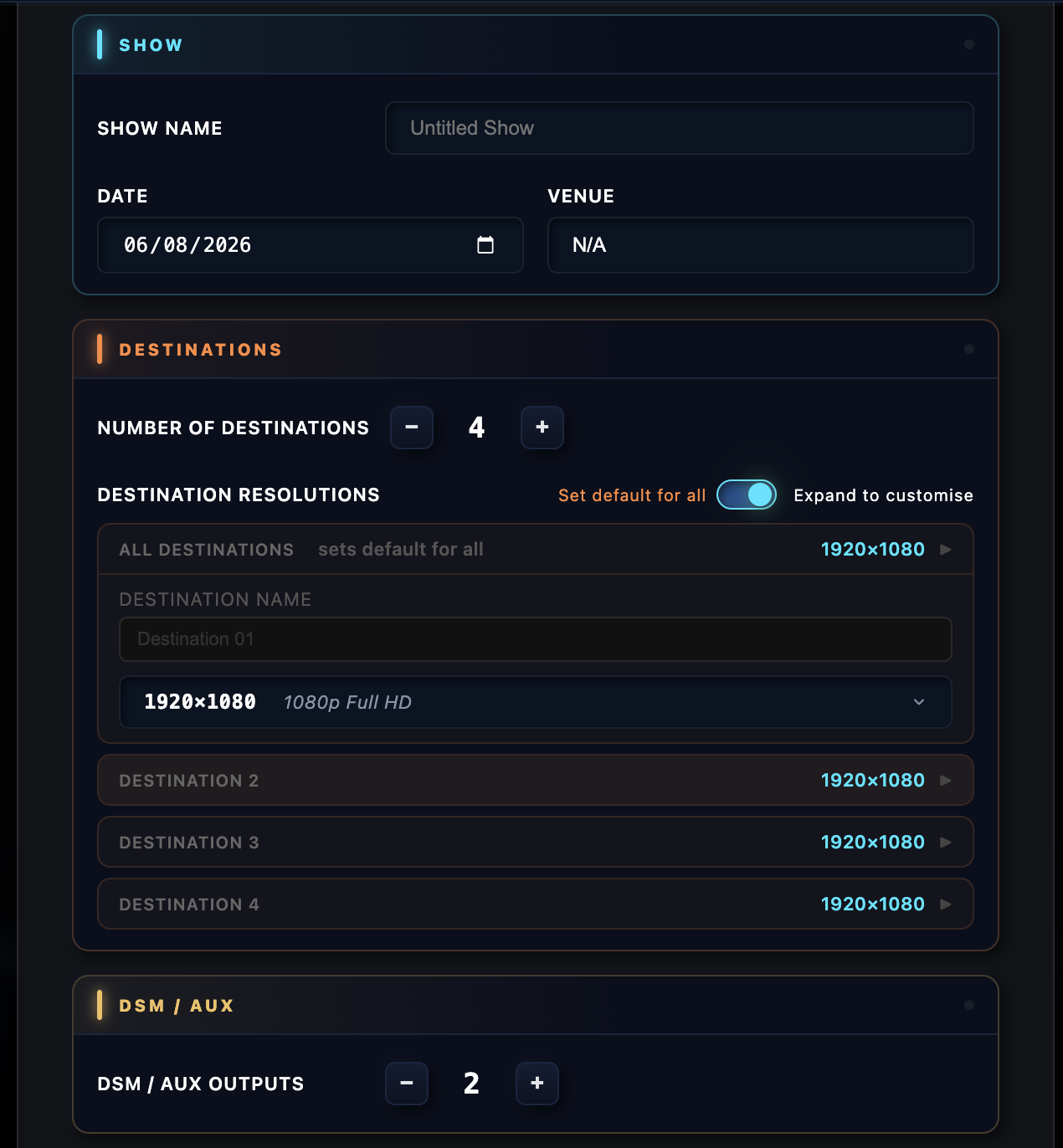
Show Name, Date, and Venue captured at project creation.

These three fields flow into the PDF header, the look book cover, and the suggested filename when you save or export. Capture them up front and you won't re-type "Acme Conference 2026" every time you export. Edit later via the SHOW button on the top toolbar.

Where Quick Setup wizard on new projects · SHOW button afterward.
Wire Mode Export
08 EXPORT

Wire Mode Export

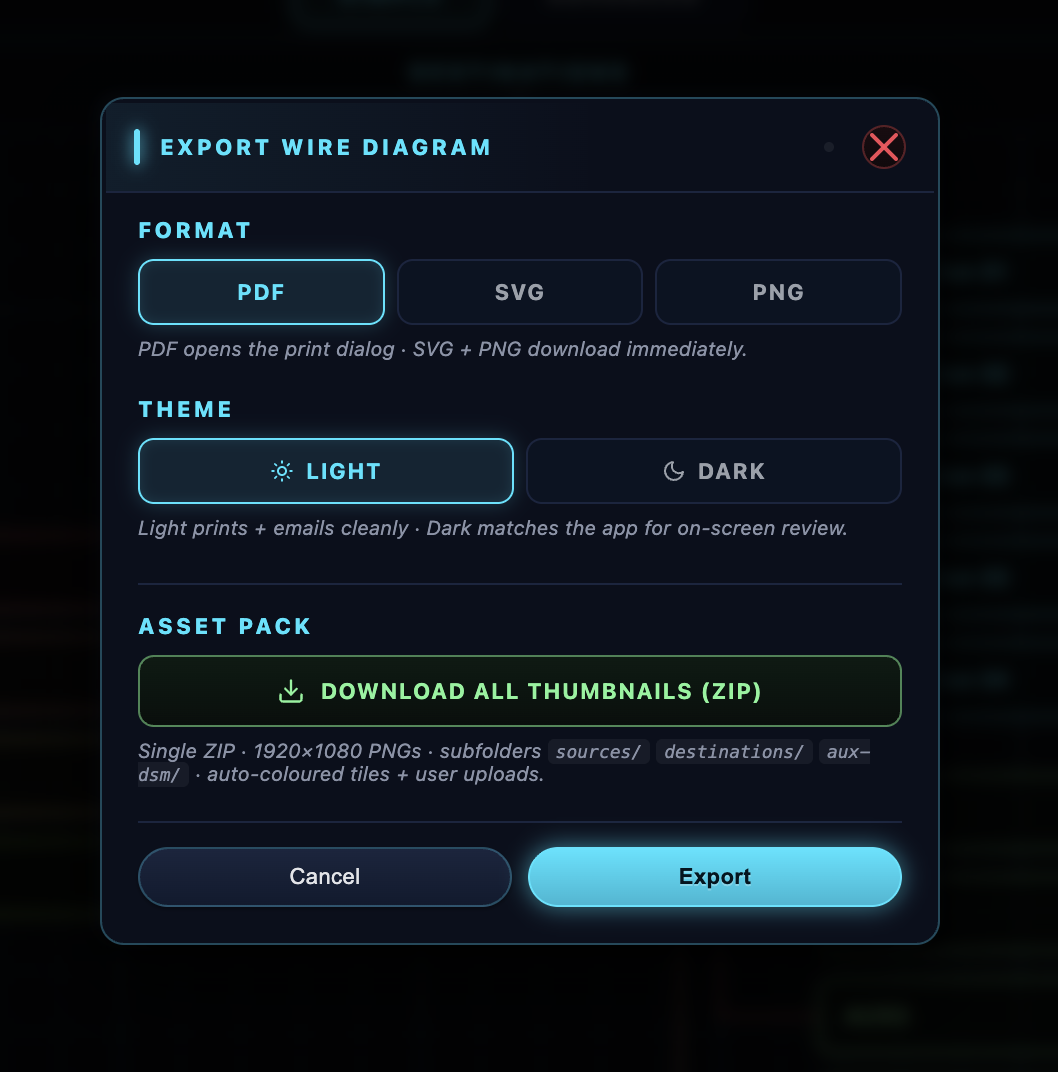
Wire diagrams as PDF, SVG, or PNG, in light or dark theme.

Crew shifts want dark for stage-call sheets; clients want light for slide decks. Multi-page Advanced exports come out as a single multi-page PDF or as separate PNGs per page. SVG keeps every label, color, and wire editable downstream if your designer wants to relabel for the audience.

Where Wire Mode → side panel → Export Wire Diagram. Pick theme + format.
Asset Pack — Download All
09 ASSETS

Asset Pack — Download All

One-click ZIP of every thumbnail in the project.

After a show wraps, your team usually wants the imagery on its own — sources, destinations, AUX/DSM screens — for archives or post-event recap decks. Instead of clicking download on each tile, grab them all at once. Files come out as 1920×1080 PNGs, organized into sources/ destinations/ aux-dsm/ subfolders.

Where Wire Mode → side panel → Download All Thumbnails.
Smarter Pre-Export Check
10 VALIDATION

Smarter Pre-Export Check

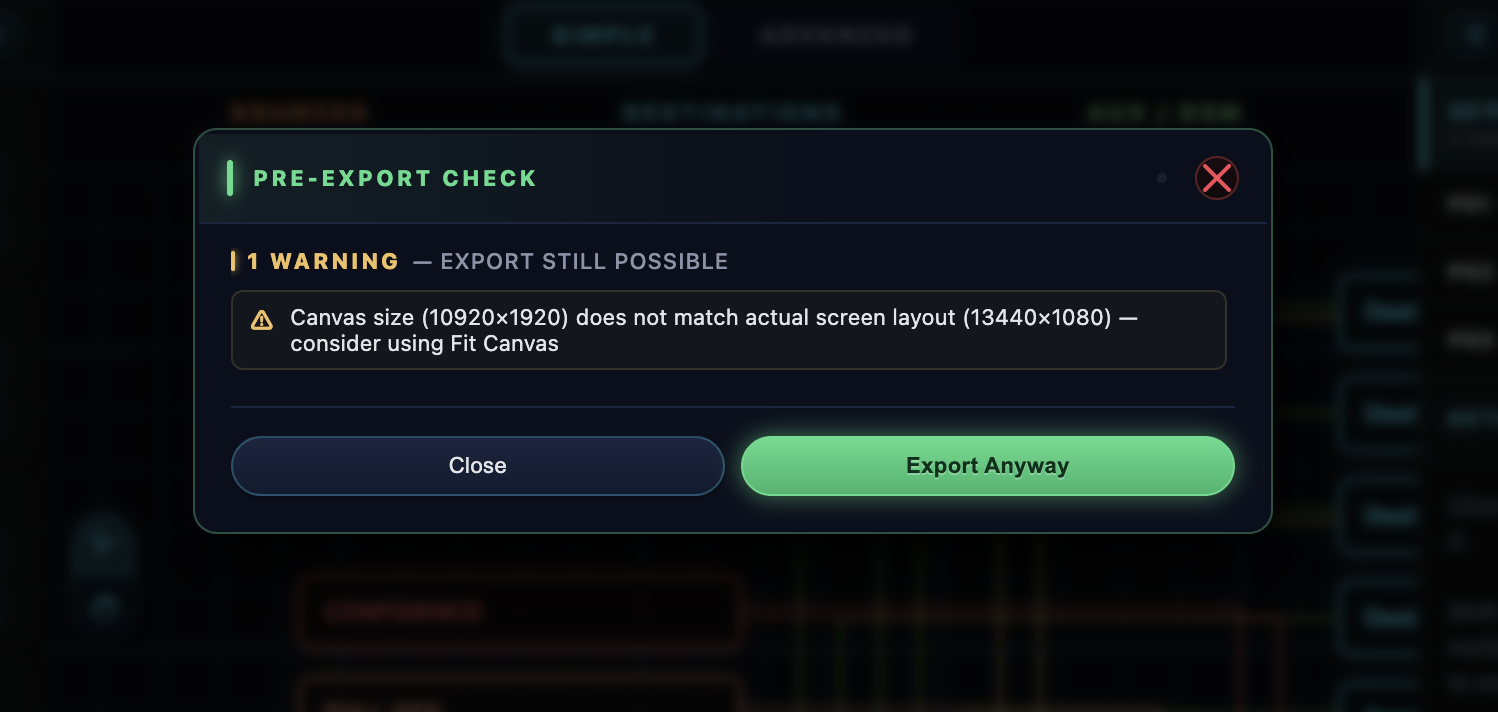
A centered modal that flags problems before the file lands on disk.

The check runs for Look Book PDF, I/O Patch CSV, and Wire Mode exports. SOURCES warnings and DESTINATIONS warnings are grouped visually so you see at a glance what's missing on which side. You can fix and re-export, or override and continue if you know what you're doing.

Where Automatic — every export runs the check first.
Upload Indicators on Tiles
11 AFFORDANCE

Upload Indicators on Tiles

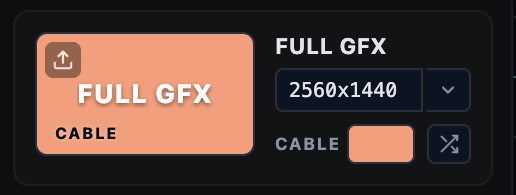
A small upload-arrow icon on every tile until you add artwork.

New users couldn't tell the colored source and destination tiles were clickable for image upload — the icon makes the affordance explicit. It disappears once you've dropped in artwork, so it never gets in the way of a finished look book.

Where Visible on every source, destination, and AUX/DSM tile until uploaded.
Help & Glossary
12 HELP

Help & Glossary

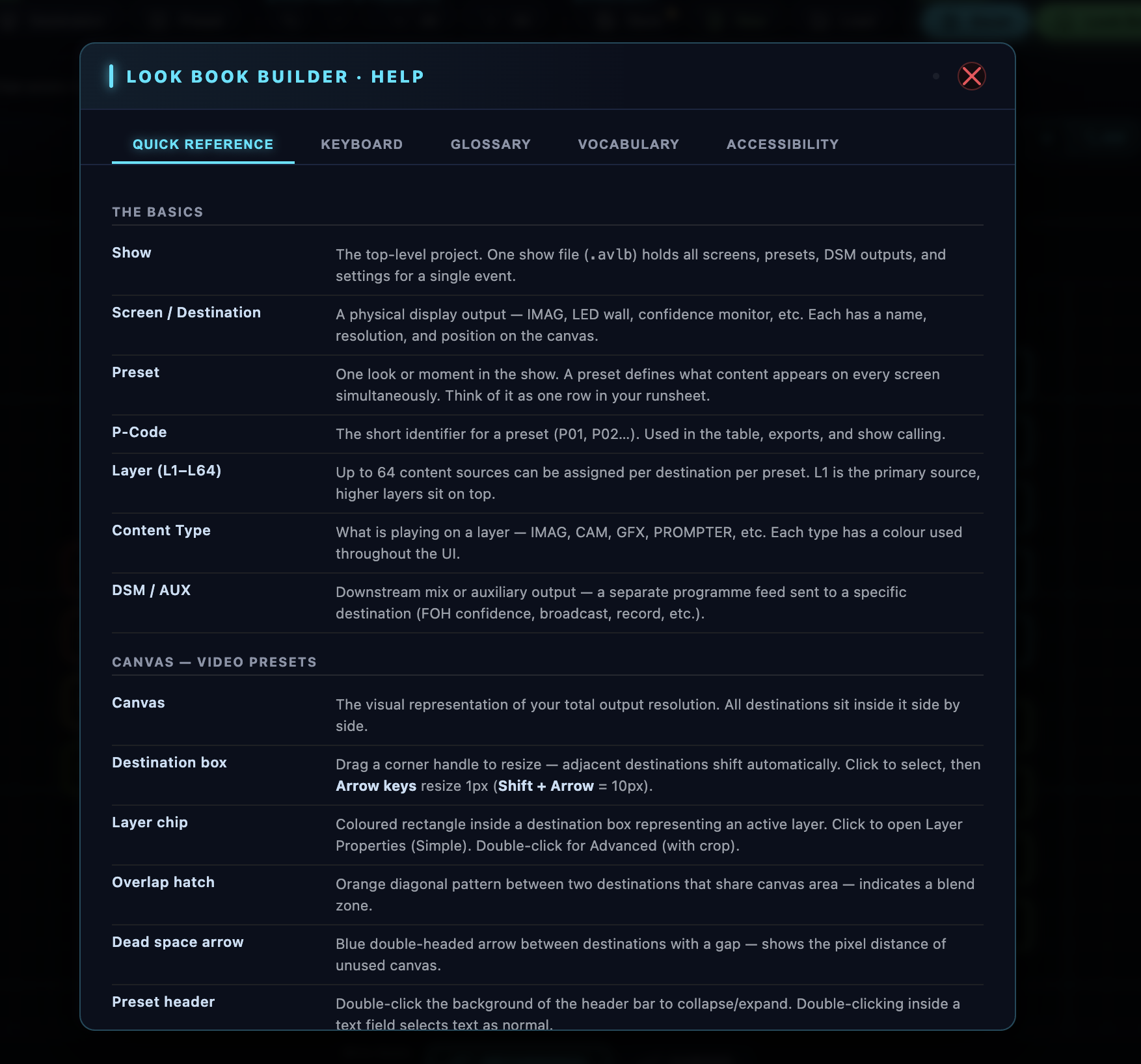
Help section now covers Wire Mode, I/O Patch, and the audited keyboard shortcuts.

The app moved fast over the last few weeks — Help needed to catch up. New entries for the Wire Mode tools, I/O Patch concepts, and a fresh pass through every keyboard shortcut to make sure what's listed matches what actually fires.

Where TOOLS group on the top toolbar → Help.
Beta — work in progress. The Wire Mode export, Asset Pack ZIP, and Pre-Export Check are still settling in. If something looks off or breaks, capture a screenshot and send it our way.